Ear Training · iPhone and iPad guide
Updated October 21, 2026 · Development version 0.1.0 · iPhone and iPad
Logic Pro and Ableton Live guide · Privacy policy
What you need
Ear Training is an AUv3 MIDI effect. It generates the notes for your exercises; a separate software instrument makes the sound. Use a compatible AUv3 MIDI host such as AUM and an instrument installed on your device. These separate apps are not included. Opening Ear Training from the Home Screen displays setup instructions, not a standalone instrument.
Start in AUM
1. Open AUM and add a MIDI channel.
2. Add Ear Training from Audio Unit MIDI Processors under BMFT LABS.
3. Add an audio channel containing your chosen software instrument and route its audio to your speakers or headphones.
4. Open AUM’s MIDI routing matrix. Connect Ear Training’s MIDI output to the instrument’s MIDI input.
5. Open Ear Training’s interface inside AUM. Select Training or Test.
Use a polyphonic patch for chords and harmonic intervals. A solo sound can suit scales and melodic intervals. Keep notes within the instrument’s playable range and begin at a comfortable volume.
Find your settings
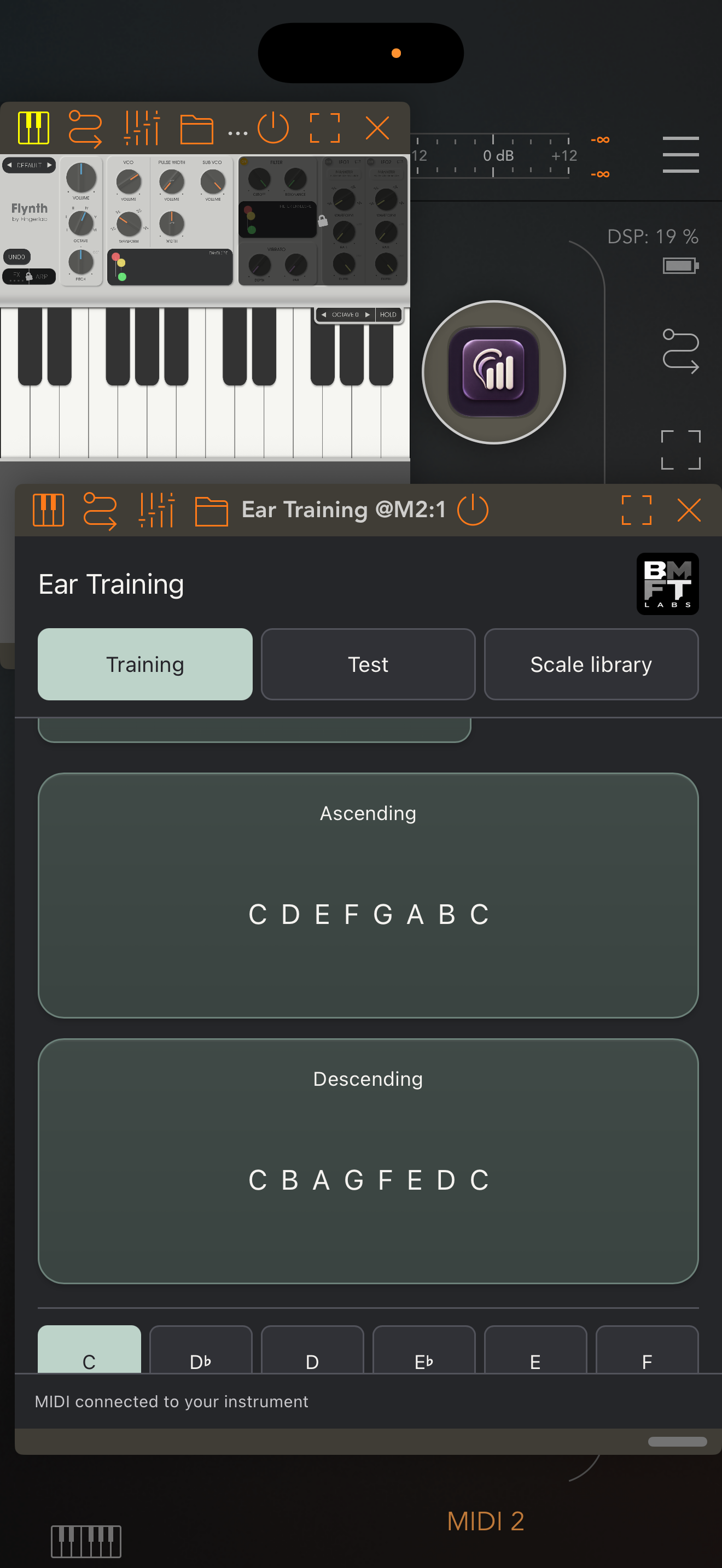
On a narrow iPhone window, tap Exercise settings. Choose your learning category and settings, then tap Done · return to exercise. Wider windows show a sidebar. Resize or maximize the host’s plug-in window if controls are obscured; scroll the exercise view to reach controls below it.
Training
Choose Chords, Intervals or Scales. Select the material, root and octave. For scales, choose a family, parent scale and mode. With Sync OFF, set BPM yourself; host sync uses the host tempo. Press Start exercise, listen and optionally sing along. Use Stop before changing your instrument setup. The app does not record or evaluate singing.
Recognition tests
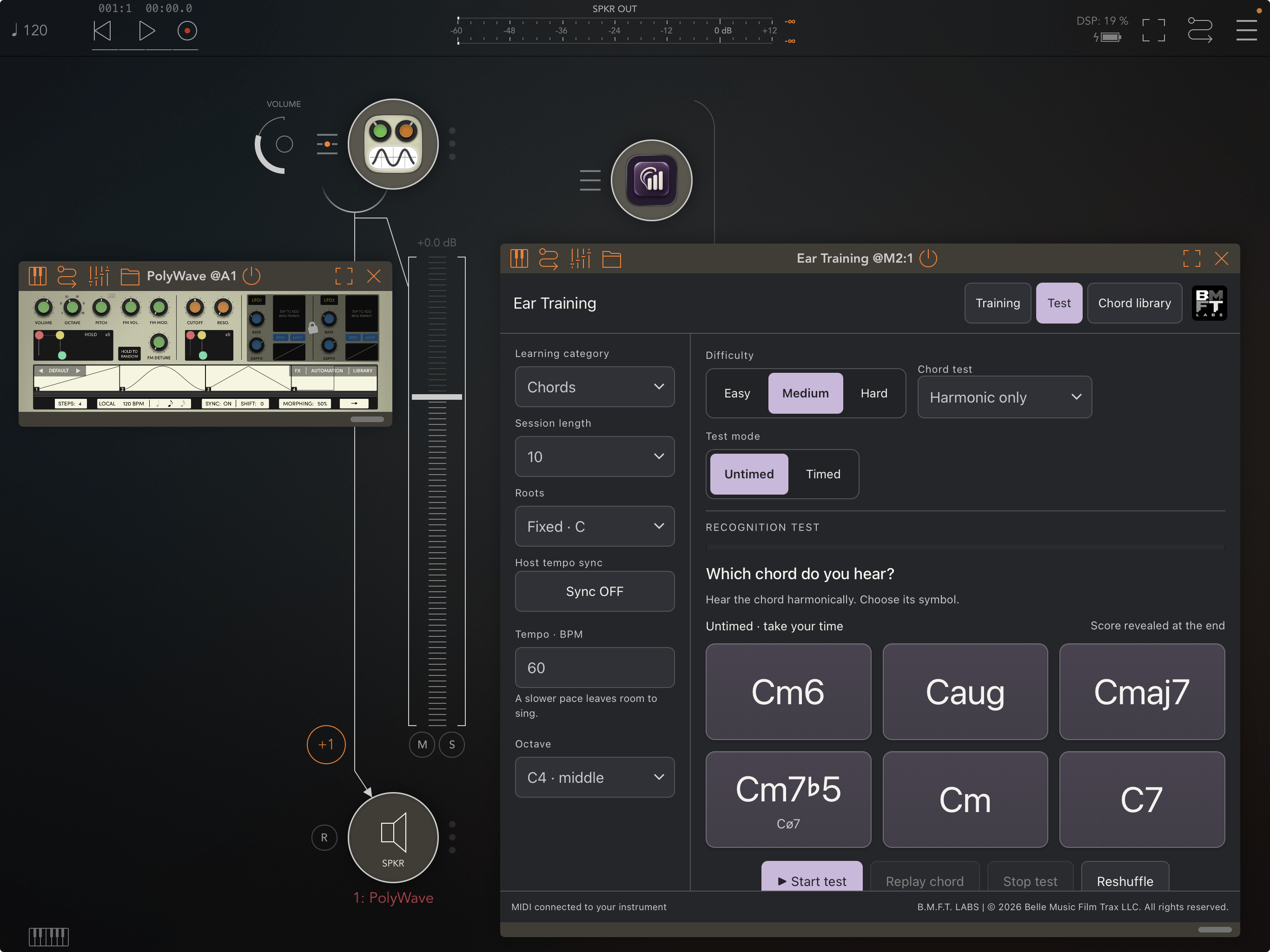
Choose Test and your category, difficulty, session length and roots. Chord tests offer Harmonic only or Harmonic + melodic. Interval tests offer melodic or harmonic playback. Scale tests can focus on a family or parent and include its modes.
Reshuffle prepares a new session without playing it. Start test begins playback. Wait for the answer cards to become active, then choose your answer. Untimed tests wait for an answer; Timed tests start their countdown after playback. Replay is available in untimed chord and scale tests, but not interval or timed tests. Complete the session to see the score and Review answers. Stop test ends early without a final score.
Libraries
Open the library for your category to explore the available material. Mobile MIDI export and drag-and-drop behavior still require final device verification; the desktop guide’s file workflow should not be assumed to work identically on iOS.
If you hear nothing
First confirm the selected instrument produces sound from the host keyboard. Then check Ear Training-to-instrument MIDI routing, instrument input/channel settings, audio output, volume, mute and bypass. Confirm the patch supports the notes and number of simultaneous voices. Stop and restart the exercise after restoring the route.
Saving and current limits
Your host may save the instrument and routing in its session. Ear Training’s exercise settings and results are not currently restored from host state. Closing the editor ends the current session. This development build’s interruptions, tempo sync and repeated playback still need final device validation. Regional scale entries use equal-tempered pitch patterns and do not teach every tradition’s tuning or performance practice.
Support
https://www.bellemusicfilmtrax.com/contact.html
bellemusicfilmtrax@gmail.com
Include your device, OS, host and instrument, exercise settings and steps that reproduce the issue. Avoid sending confidential projects.