Composer Ear Training
Using iPhone or iPad? Open the mobile setup guide.
Develop your ability to hear music in your head.
Updated October 21, 2026 for the current version 0.1.0 interface. Setup, Training, recognition tests and MIDI tools for Logic Pro and Ableton Live.
Select a screenshot to enlarge it. Use Back to page or press Escape to return; Zoom in lets you inspect the controls.
1. Start in Logic Pro
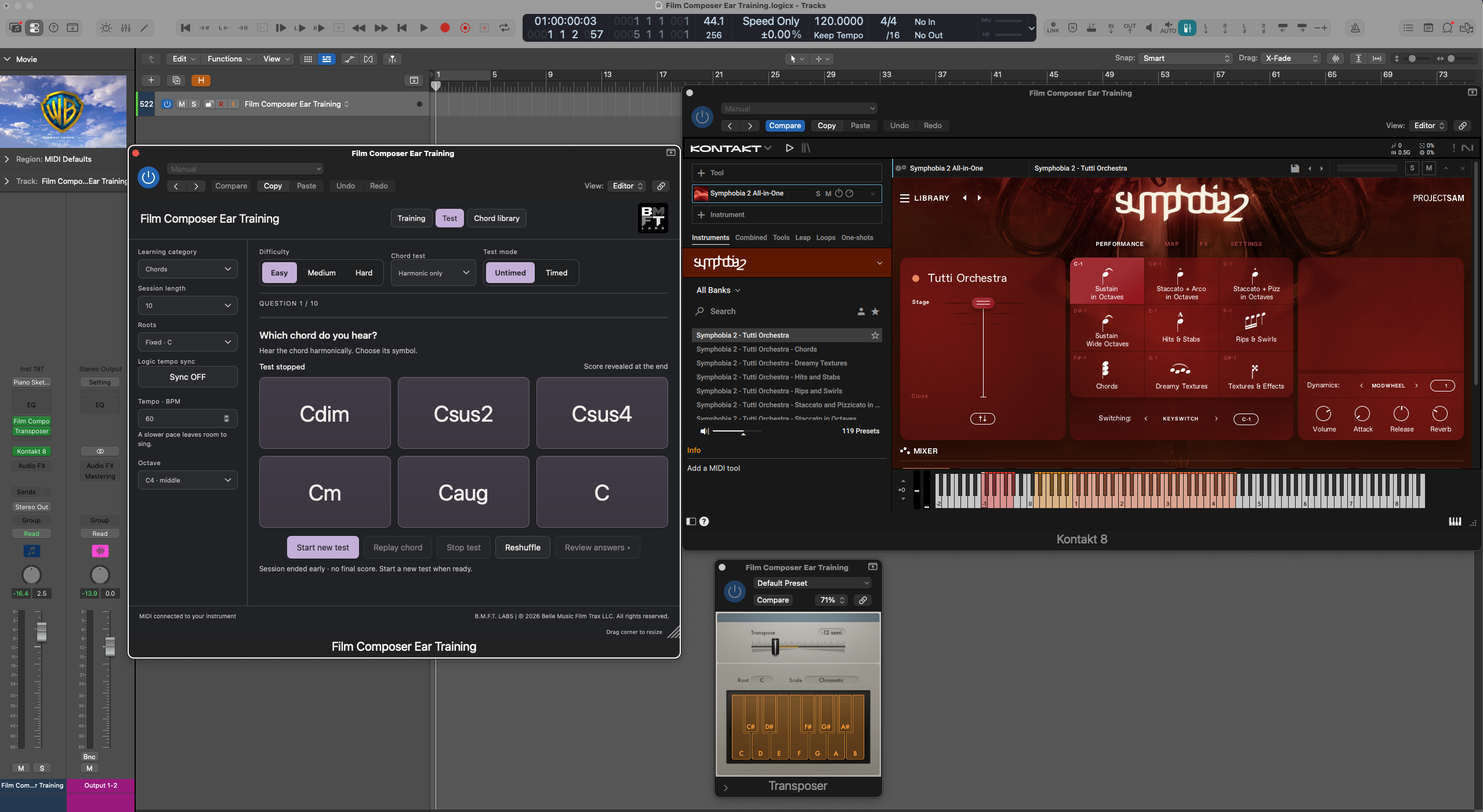
Create a software instrument track and load an instrument. In the MIDI FX slot above the instrument, select Composer Ear Training under BMFT LABS. Select or record-enable the track, open the plug-in and choose Training.
The plug-in generates MIDI; your instrument supplies the sound. It has no built-in instrument and does not record or assess your singing. Choose a comfortable volume before starting.
Use a compatible Logic instrument or a third-party software instrument you own. For chords and harmonic intervals, choose a polyphonic patch. Solo flute, clarinet or guitar sounds can suit melodic exercises; check the patch’s playable range.
2. Connect Ableton Live
Create two MIDI tracks. Put Composer Ear Training VST3 on the first and your instrument on the second. Set the first track’s Monitor to In.
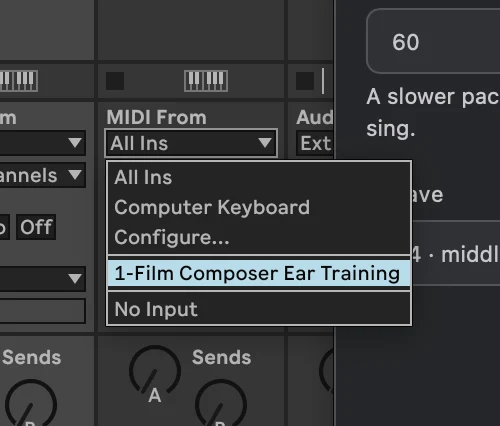
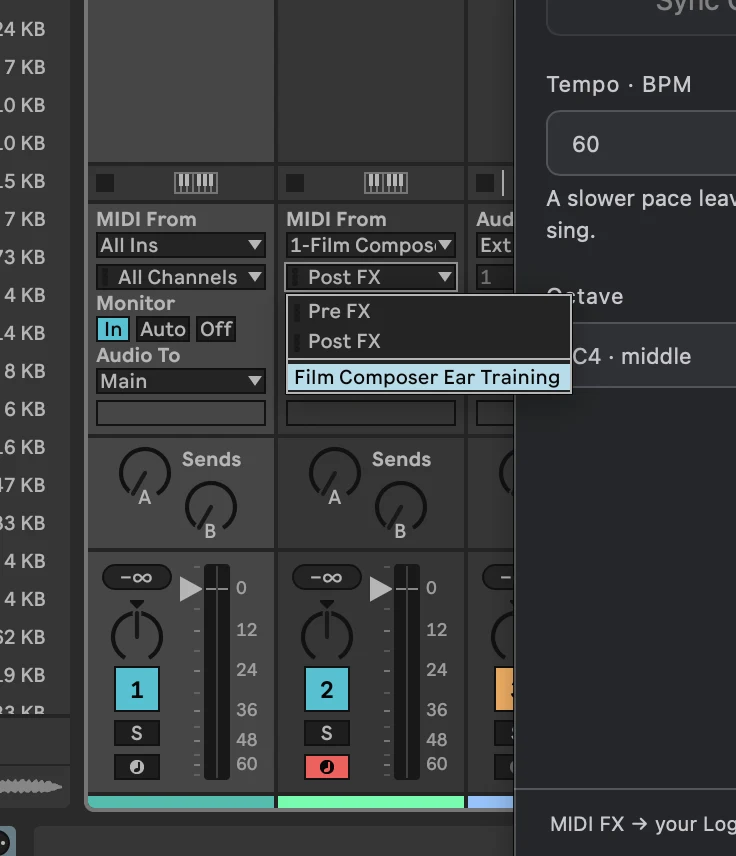
On the instrument track, choose the Ear Training track in the upper MIDI From menu. In the menu below it, choose Composer Ear Training as the output source. Track numbers and names may differ.
Set the instrument track’s Monitor to In, or choose Auto and record-arm it. Open Ear Training with the wrench button and start an exercise. Check the receiving track’s output and volume if there is no sound.
3. Training: choose your material
Open Training and select Chords, Intervals or Scales. Training now exposes the available material directly; difficulty levels belong to recognition tests.
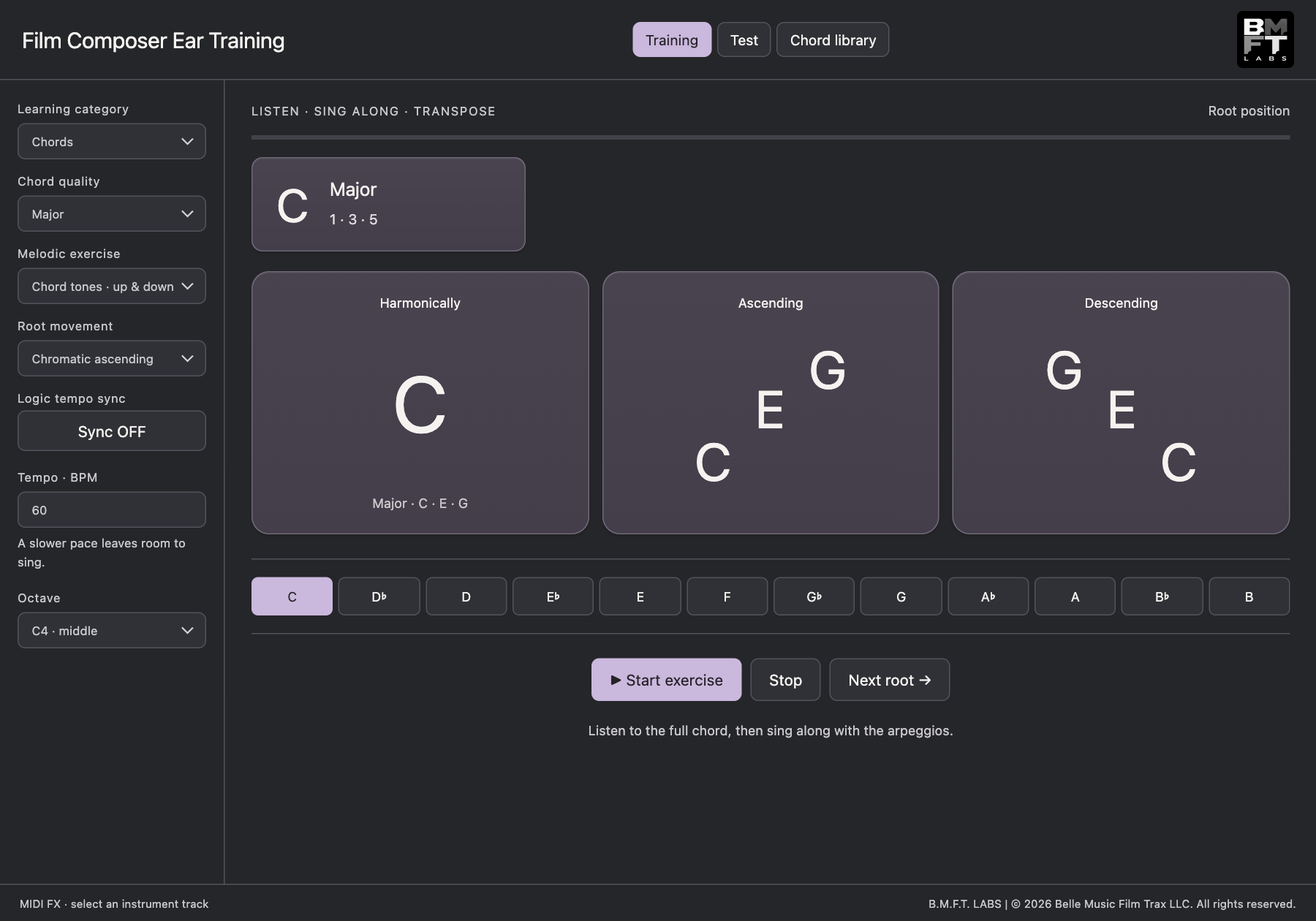
For chords, select a quality and melodic exercise. Listen to the chord harmonically, then sing or hum the ascending and descending phrases. The compact note cards show the notes being practiced.
With Sync OFF, set BPM yourself. With sync on, tempo follows the host. Choose an octave that suits your instrument and voice. Use Stay on this root, chromatic movement, root buttons or Next root. Click Start exercise to begin and Stop to end playback.
4. Training: intervals
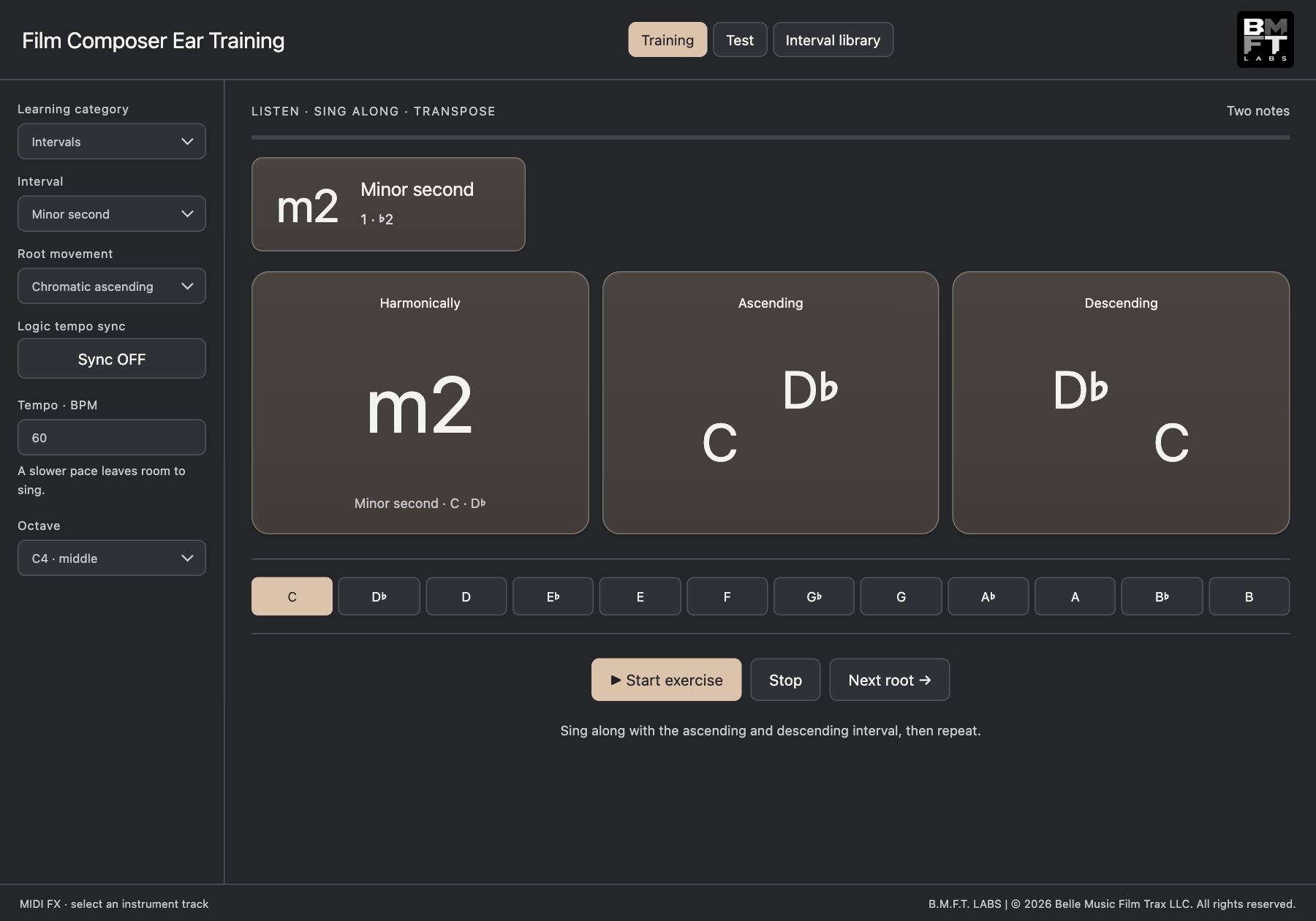
Select Intervals and choose the distance you want to practice. The first card presents the interval harmonically; the following cards show the ascending and descending notes.
Listen to both notes together, then sing along with the melodic phrases. Repeat on a comfortable root before trying another root or interval.
Use a polyphonic patch to hear both notes in the harmonic stage. A monophonic or solo legato patch may play only one note at a time. Stop the exercise before changing your setup.
5. Training: scales and named modes
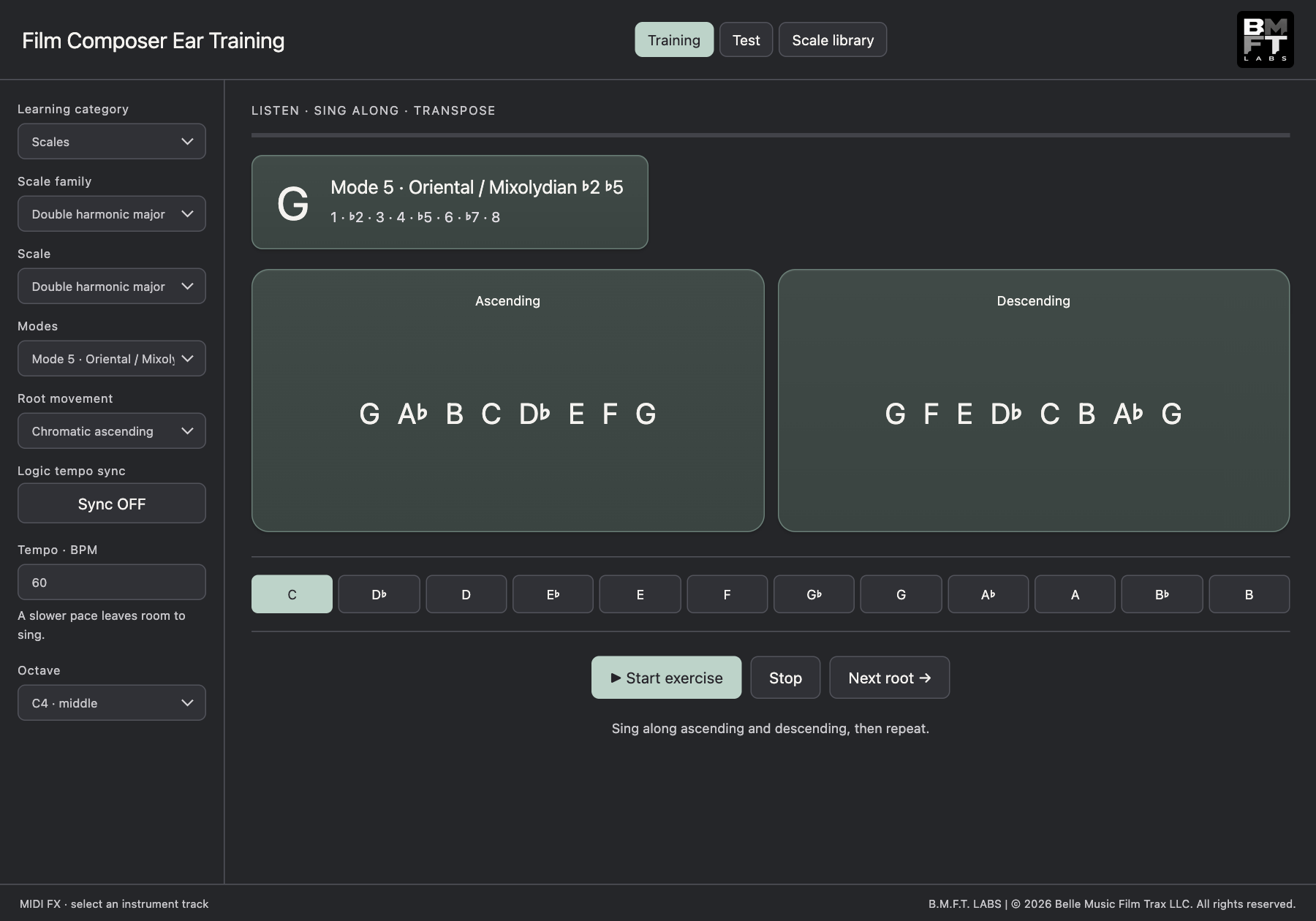
Choose a Scale family, a parent Scale and a mode from Modes. The mode number identifies its starting degree; its name identifies the resulting pitch pattern.
Mode 1 is the parent scale. Selecting another degree keeps the parent collection but starts the phrase on that degree. For example, C major starting on D produces D Dorian. Choose the next mode manually; automatic all-mode cycling is not included.
Names are shared across Training, Tests and the library. Common names are used where available; uncommon patterns receive descriptive names. Symmetrical rotations can share a pattern. Regional entries use 12-tone equal temperament and do not reproduce every tradition’s tuning or performance practice.
6. Tests: chords
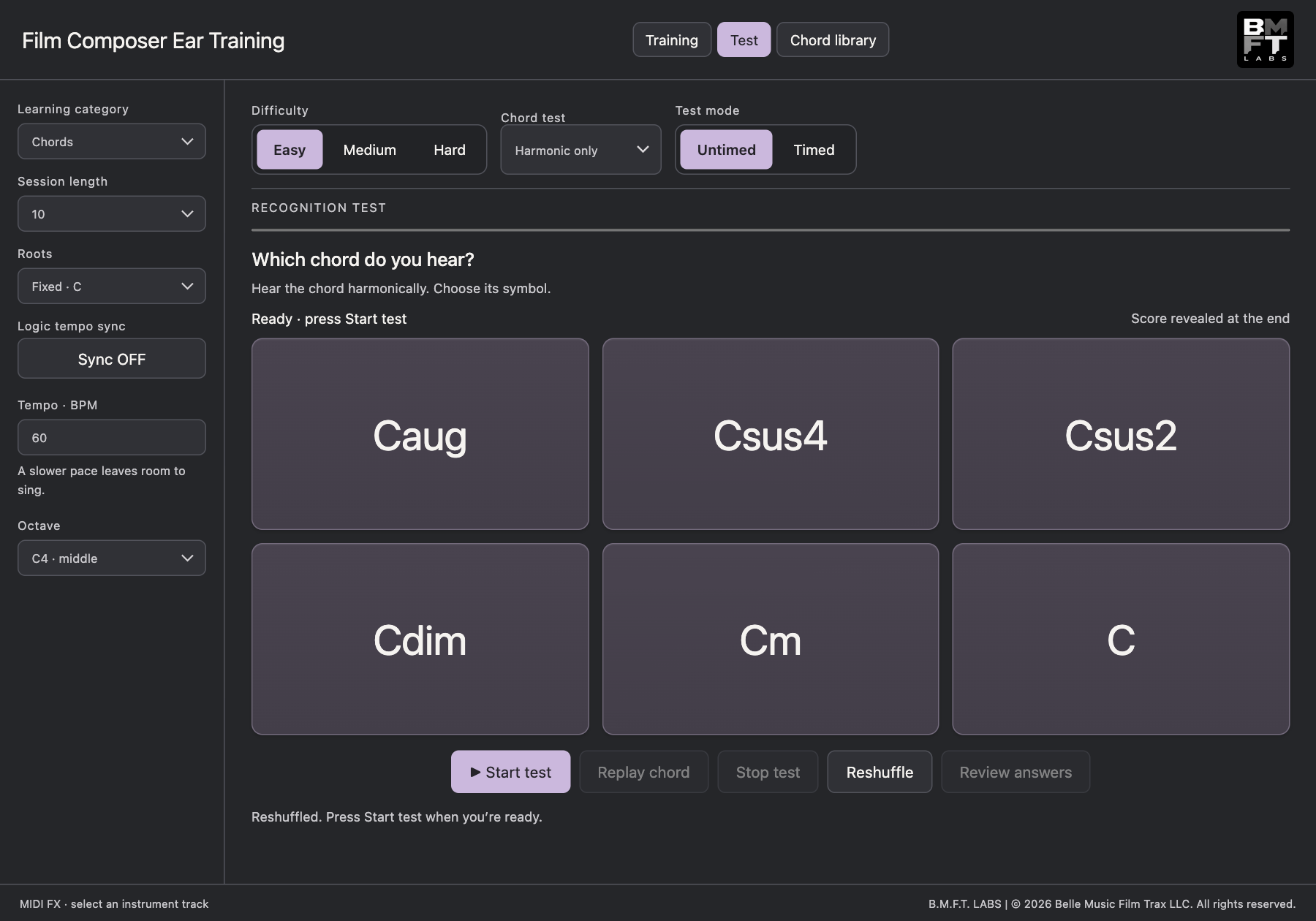
Open Test, select Chords, then choose Easy, Medium or Hard. Set a session length of 10, 20 or 30 questions and choose Fixed C or Mixed roots.
Harmonic only plays the notes together. Harmonic + melodic plays the chord together and then ascending. Both choices are available at each difficulty.
Begin Untimed, then try Timed with a 5-, 10- or 15-second answer window. The clock starts after playback. Choose an answer once the cards become active. Untimed chord tests allow replay after playback; timed tests do not. Timeouts count as unanswered.
7. Tests: intervals
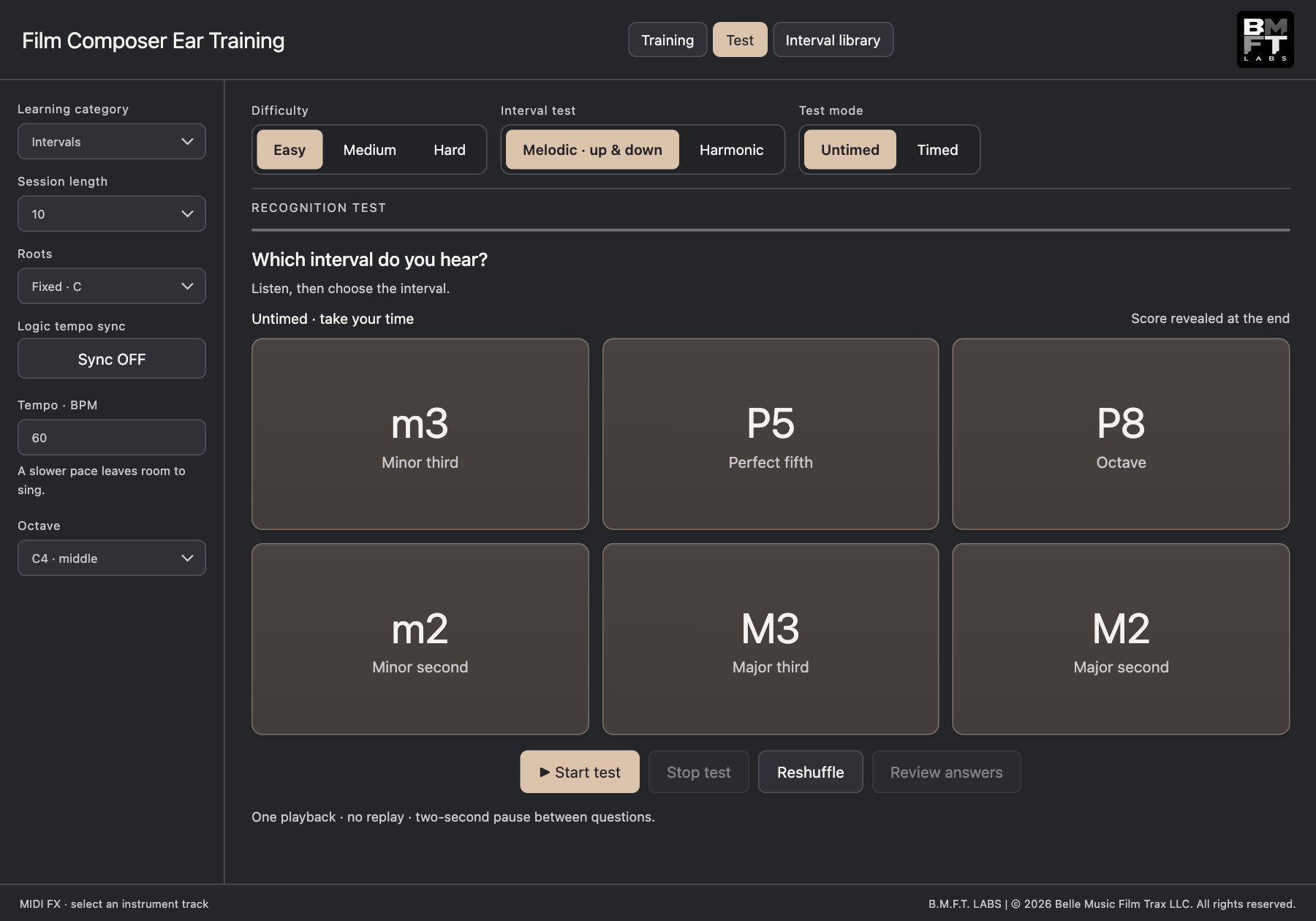
Choose Intervals and a difficulty. Melodic · up & down plays the interval ascending and descending. Harmonic plays both notes together.
Interval tests provide one playback per question, with no replay, including in Untimed mode. A two-second pause separates questions. Untimed mode waits for your answer; Timed mode starts its countdown after playback.
Small m means minor, capital M means major and P means perfect. The tritone is shown as a sharp fourth / flat fifth. For the harmonic version, use an instrument patch that can play both notes.
8. Tests: focus on a scale or family
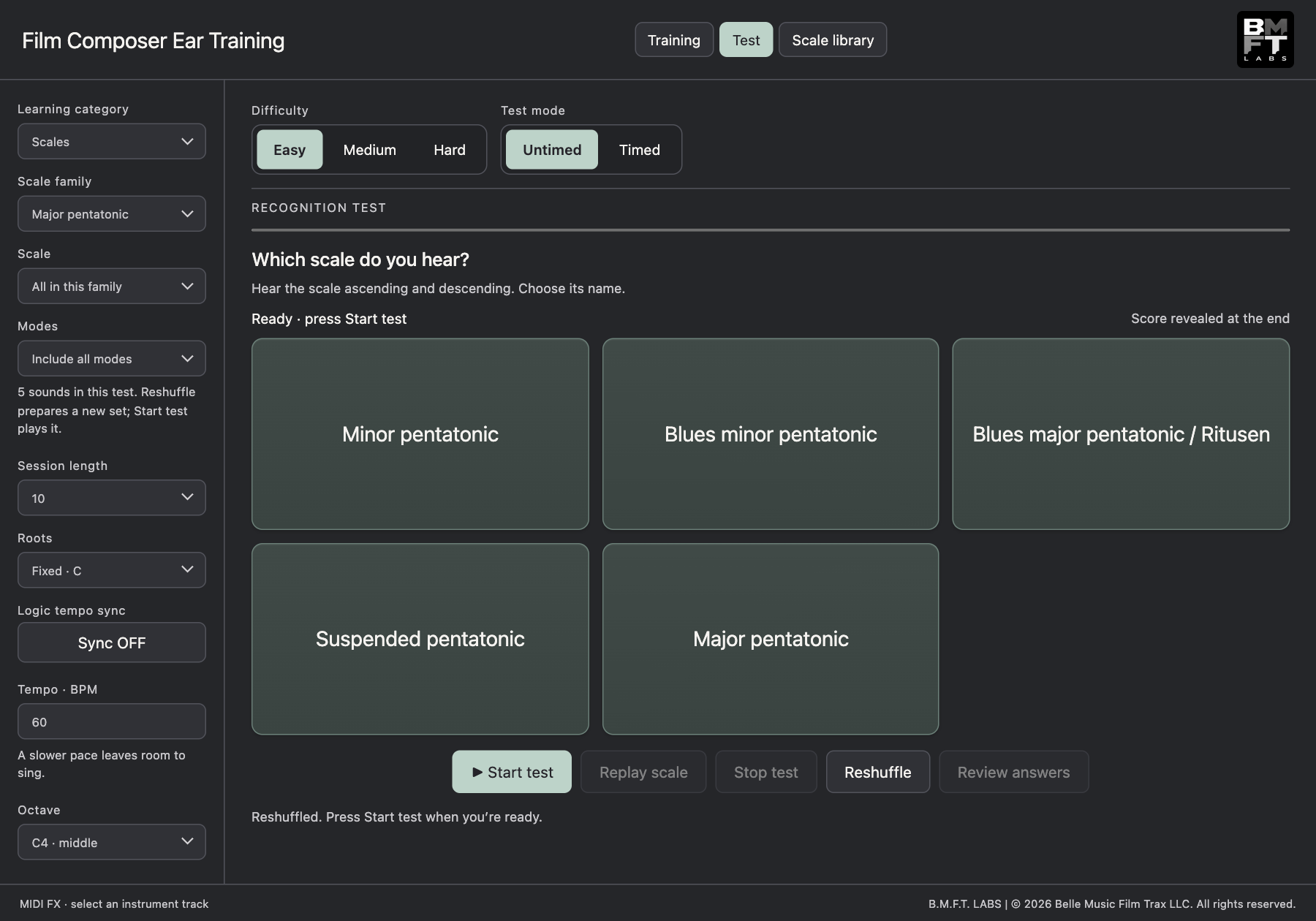
Choose Scales, then a Scale family. Select All in this family or a specific parent under Scale. Under Modes, select Parent scales only or Include all modes.
For example, select Major pentatonic and Include all modes to test its five named patterns. Select Arabic scales to keep the pool within that family. All scales broadens the pool; Easy limits the global pool to basic parents. To explore the broadest pool, choose All scales, Hard and Include all modes.
The sidebar reports the number of distinct sounds. A recognition test needs at least two. Identical interval patterns are combined, and the available pool can produce fewer than six answer cards. Scale tests play ascending and descending; replay is available when Untimed.
9. Reshuffle, results and next steps
Reshuffle prepares a fresh session using the current settings without starting playback. Click Start test to play that prepared session. Changing settings discards the prepared session so the next test matches your new choices.
If you press Start without preparing a session, the initial preview cards may change when the first question is generated. During a session, cards change with each question. Test settings remain locked until the session ends.
The engine spaces repeated sounds apart when the pool allows it, keeping the previous three sounds out of the next selection when at least four distinct sounds are available. Smaller pools require earlier repeats.
After the final question, review your score and use Review answers to inspect the results. Stop test ends early without a final score. Return to Training for difficult sounds, then start a new test or use Reshuffle to prepare another session.
A useful routine: listen, sing along, test, review and revisit. Try another root or instrument once a sound is familiar. Recognition scores measure the exercise, not composition quality or singing accuracy.
10. Libraries and MIDI
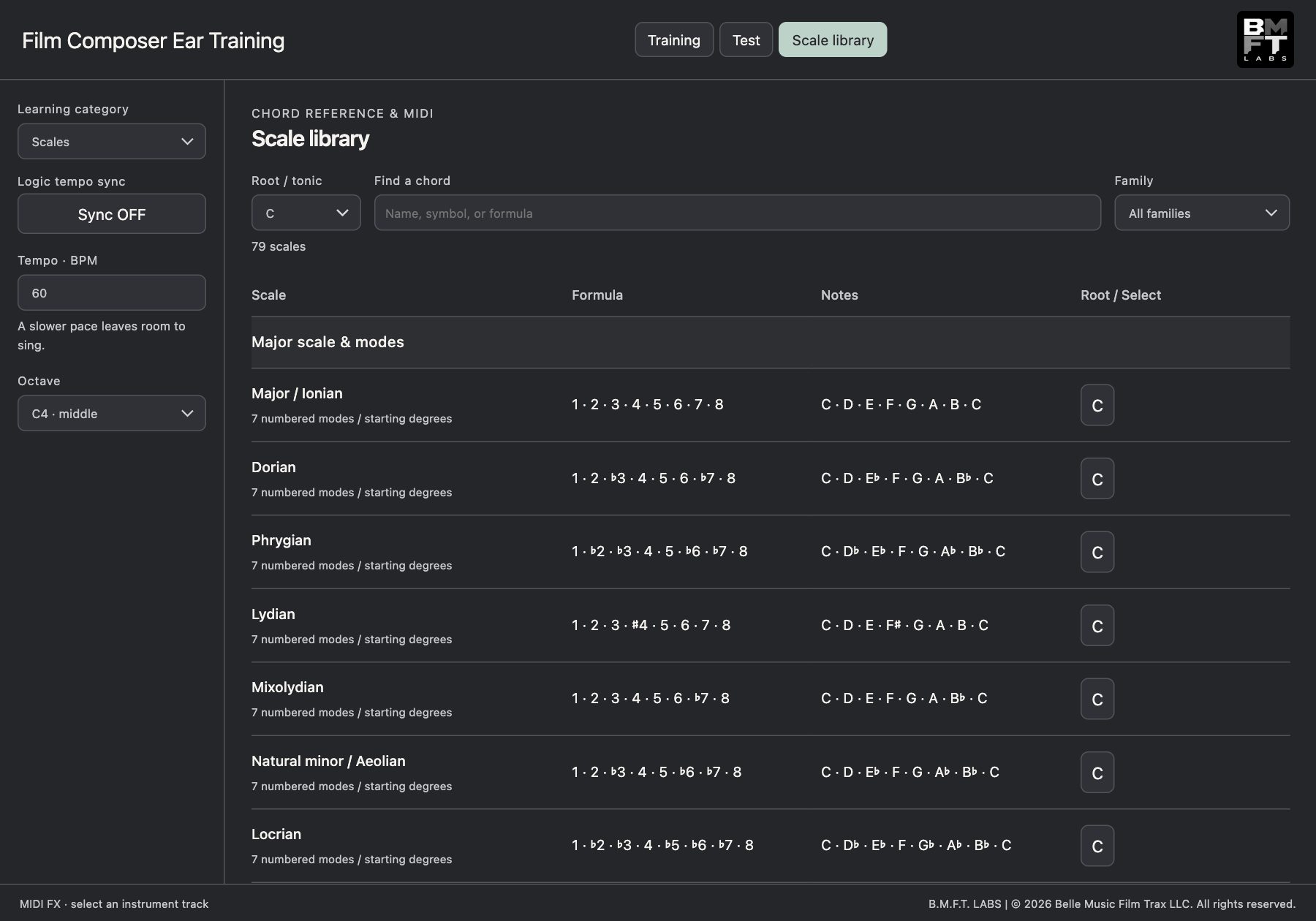
Open the library tab for your category. Search or filter the entries, select an item and inspect its notes, formula and available description. Set the root, octave and any available mode or playback pattern.
Use Audition to hear the example through your routed instrument. Use Export MIDI to save a file, or drag the MIDI area into an instrument track in your arrangement.
Scale and interval exports follow the selected mode and pattern. Chord exports use held root-position chords. Exported MIDI files remain where you save them and can be reused in your composing work.
11. Save your favorite instrument setup
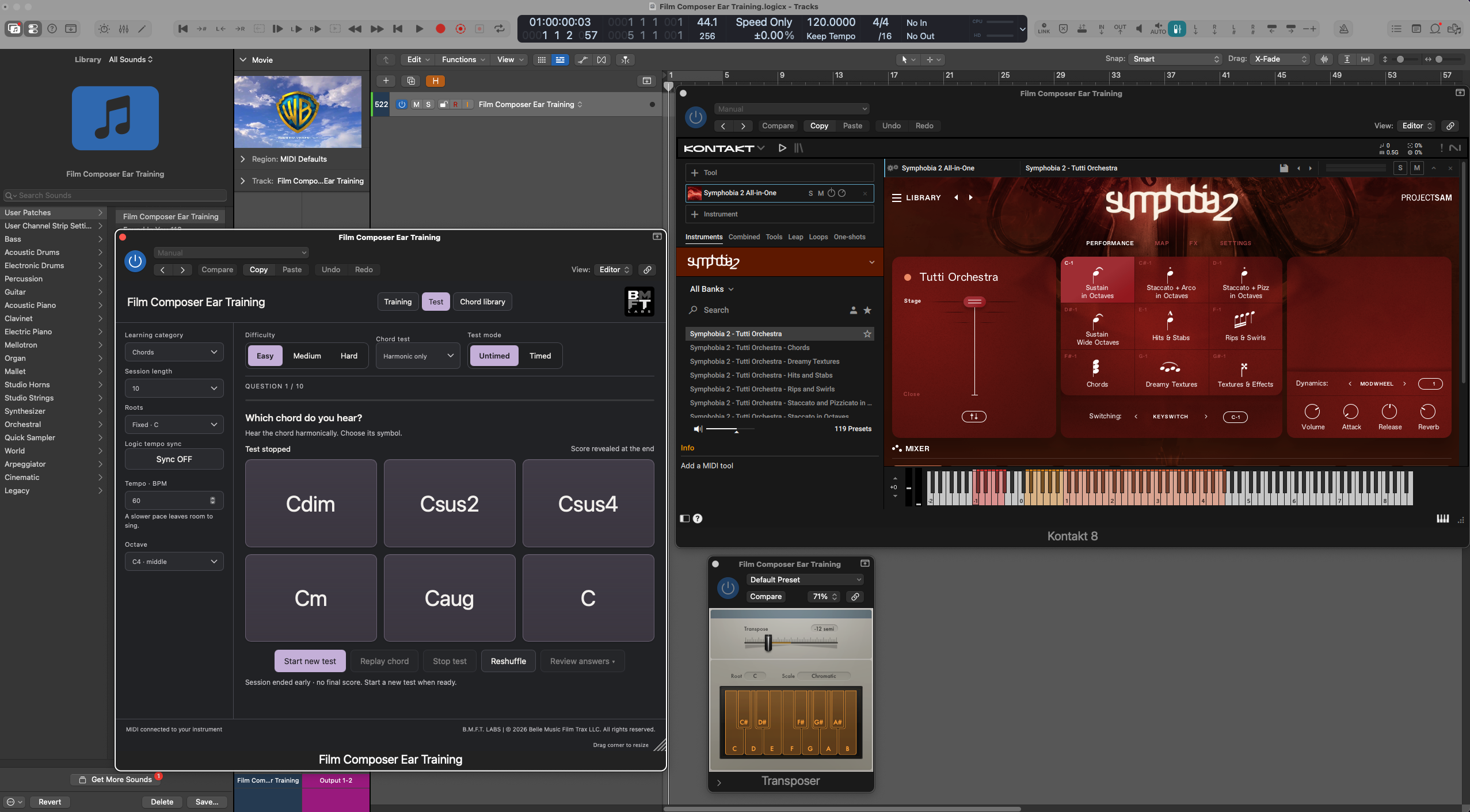
Logic Pro: save the channel strip setting or a Library patch with Ear Training and your instrument. This makes it convenient to recall your favorite synth, sampled guitar, piano or orchestral setup.
Ableton Live: save both MIDI tracks and their routing with File > Save Live Set As Template. Reopen that template for a new practice session.
Saved host setups recall the instrument and routing. Current Ear Training exercise settings and test results are not restored from saved DAW state. Choose those settings when you reopen the plug-in. Third-party instruments and sound libraries must be installed separately.
12. Troubleshooting and current limits
No sound in Logic? Confirm the MIDI FX is above a loaded instrument. Select or record-enable the track, check mute/output settings and confirm the instrument plays from your keyboard.
No sound in Live? Check both MIDI From menus on the instrument track and its monitoring. The source track must run the VST3; the receiving track must contain the instrument.
Playback stops? Check whether the host has stopped processing the track or the plug-in is bypassed. Restore monitoring or record-enable the track. Training can be started again. If a test pauses and offers Resume question, use it to replay the interrupted question without scoring it as a missed answer.
Answers are inactive? Wait for playback to finish. Replay is intentionally unavailable in interval tests and timed tests. A scale pool with only one distinct sound cannot start a recognition test; include modes or choose more scales.
Missing plug-in or old interface? Restart your host after an update and check its plug-in scan/validation. Resize the editor with the bottom-right corner grip if controls feel crowded.
Current build: Mac AU MIDI FX and VST3, version 0.1.0, pre-release. No standalone instrument or microphone scoring. Exercise settings/results are not saved in DAW state. Closing the editor ends the current session. For help, report your host/macOS version, category, settings and reproduction steps at bellemusicfilmtrax.com/contact.html.